


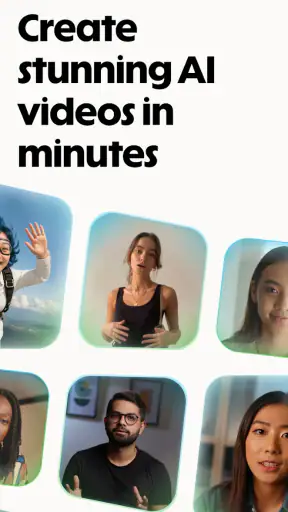
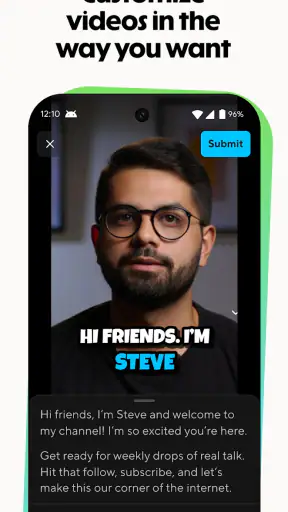
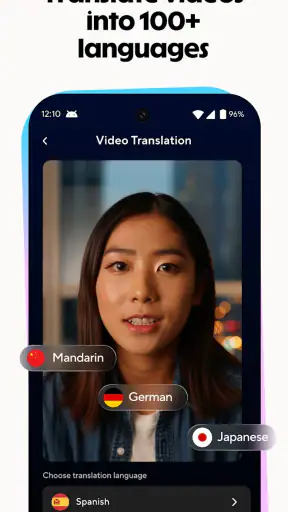
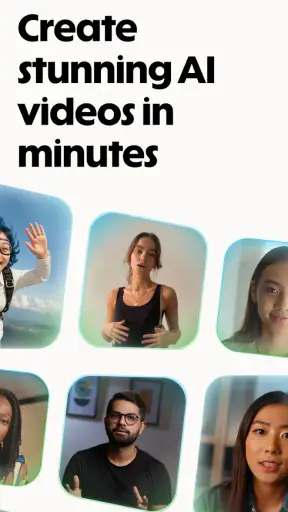
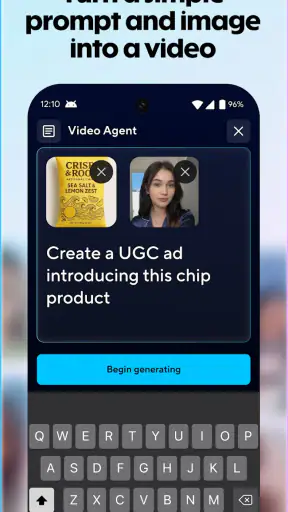
I approached HeyGen: AI Video Generator as a practical video-making tool rather than a replacement for a full desktop editor. Its focus is clear: turning written ideas and photos into short AI videos with avatars. That makes it interesting for people who need presentable content quickly, especially when recording yourself is inconvenient. My experience is that the app is most appealing when the message matters more than elaborate editing.
HeyGen Technology Inc. places the app in the video players and editors category, although its workflow feels different from a traditional timeline editor. You are not mainly trimming clips, arranging layers, or correcting color. Instead, you start with a script, a visual idea, or a photo and let the AI handle much of the presentation. That shift makes the app easier to approach, but it also means you give up some direct control.
How the AI video workflow feels in everyday use
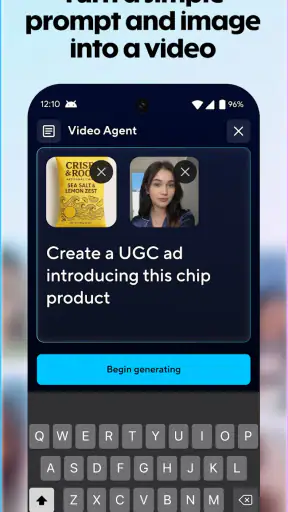
The first thing I noticed is that the app is designed around reducing the distance between an idea and a finished-looking video. A conventional editor asks me to gather footage, record audio, choose a frame, and build a sequence. Here, the starting point can be text or an image. That is a meaningful advantage if I need a quick explainer, a social post, a product introduction, or a visual message without appearing on camera.
The text-to-video approach is particularly useful when the script is already clear. I can write the main point, divide it into short sections, and think about how each sentence should sound when spoken. The important tip is to write for an avatar rather than for a blog post. Short sentences, natural pauses, and one idea at a time generally produce a more convincing result than dense paragraphs filled with commas and technical terms.
Photo-to-video is better suited to a different kind of task. I would use it for a portrait, a still product image, a simple announcement, or a visual post that needs motion without a complete shoot. A strong source image matters more than many new users expect. A clean, well-framed picture gives the AI a better starting point, while a busy image can make the result feel less controlled. Preparing the image before importing it is one of the easiest ways to improve the final impression.
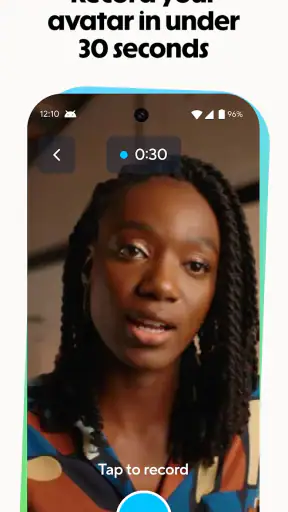
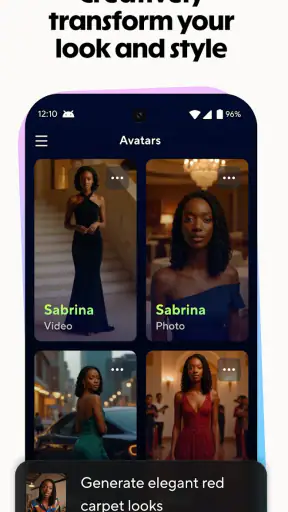
Avatars make the app useful for people who want a presenter but do not want to film themselves. I can imagine using one for an internal update, a learning introduction, or a short customer-facing explanation. Still, an avatar is not automatically more engaging than a real person. For a personal message, a real recording usually carries more warmth. For repeatable informational content, the avatar approach can be more consistent and less demanding.
One practical workflow I recommend is to create the script outside the video screen first. I would read it aloud, remove phrases that sound unnatural, and mark where a visual change should happen. This avoids wasting time generating a video from text that was never comfortable to hear. It also makes the AI output easier to judge because I am evaluating the presentation rather than trying to rewrite everything at the same time.
Where the speed feels helpful
The perceived speed advantage comes from preparation, not just from the generation step. If I already have a concise script and a suitable image, HeyGen can feel much faster than arranging a video manually. I do not need to set up lighting, record several takes, or search through a large collection of clips before seeing a first version. That makes it a good fit for drafts and time-sensitive communication.
There is a trade-off, though. AI generation is not the same as instant editing. A more ambitious request, a longer script, or repeated revisions can make the process feel less immediate. I would not open the app expecting to produce a highly polished campaign video in a few taps. The time saved is greatest when the goal is a clear, modest video rather than a complex production.
For a realistic everyday scenario, imagine that I need to explain a change to a small online community before the end of the day. I can draft a short script, choose an avatar, and turn the message into a presentable video without asking everyone to appear on camera. If the first version sounds too formal, I can shorten the sentences instead of trying to fix the problem with visual effects. That is where the app’s speed feels genuinely useful.
Another useful habit is to generate a rough version before polishing the wording. Hearing the script through the chosen presentation can reveal awkward phrases that look fine on a screen. I would then edit the text, not endlessly adjust the visuals. This keeps the workflow focused and reduces the temptation to spend time decorating a message that still needs clearer writing.
What happens during heavier use
Heavy use is less about gaming-style intensity and more about repeated creative cycles. Generating several versions of the same script, testing different avatars, or converting multiple images can make the process feel more demanding than a simple one-off video. I would treat the app as a focused creation tool and avoid opening it with a long list of unrelated projects unless I am prepared to review each result carefully.
The biggest workload is often editorial rather than technical. AI can produce a usable starting point, but I still need to check pronunciation, pacing, emphasis, and whether the visual presentation matches the message. A video may be technically complete while still feeling flat or unnatural. That is why I would reserve time for review instead of assuming that the first generated result is ready to publish.
There is also a quality trade-off between speed and specificity. A broad script such as a general welcome message is easier for an avatar to present naturally. A script filled with unusual names, specialist vocabulary, abbreviations, or delicate emotional language needs closer checking. If the exact wording is important, I would keep the script simple and test short sections before building a longer piece.
For a small business owner, the app could handle recurring informational videos, but I would create a reusable writing pattern rather than regenerate everything from scratch. A consistent opening, a short central explanation, and a direct closing can make revisions quicker. The advantage is not only faster production; it is also easier comparison between versions because the structure remains stable.
On the other hand, I would not choose this as my main tool for a long-form project with many scenes, precise cuts, layered sound, or detailed visual timing. A traditional mobile editor is usually better when I need to control every frame. HeyGen’s strength is the AI presenter and generation workflow, not the fine-grained craft of a full editing suite.
Stability and recovering from an imperfect result
My reliability judgement is based mainly on how recoverable the workflow feels. An imperfect generation is not necessarily a failure if I can revise the script, change the presentation, or start from a better image without rebuilding an entire production manually. That makes the app more forgiving for short projects than a workflow that requires recording and assembling every element again.
Recovery is easiest when I keep source material organized. I would save the script in a separate note, retain the original image, and make changes in small steps. If a result feels wrong, I can identify whether the issue came from the wording, the image, or the chosen avatar instead of changing everything at once. This is a simple but valuable habit because it turns trial and error into a controlled process.
The app can still create friction when expectations are too high. AI-generated presentation may not match the exact tone I imagined, and a technically correct script can sound less natural when spoken. I would judge reliability by the usefulness of the revision path, not by expecting every first attempt to be perfect. For professional material, I would always watch the complete video before sharing it.
There is a further reason to review carefully: an avatar can make a small wording mistake more noticeable than plain text. A typo in a document may be corrected silently by the reader, while a spoken error can undermine confidence immediately. I would proofread names, numbers, and specialized terms twice, especially in educational or business content.
When a generation does not work for the intended purpose, the best recovery may be to reduce the ambition of the project. A shorter script, one clear visual idea, and a simpler presentation are often more effective than adding more instructions. This is one of the app’s less obvious lessons: better inputs usually help more than trying to force a complicated concept into one automatic video.
Phone limitations and resource expectations
HeyGen is free to install, and its content rating is Everyone, which makes it approachable for a broad audience. The current version is 1.1.8 and requires Android 10 or newer. That requirement is worth checking before planning a workflow around the app, particularly if I am using an older phone or recommending it to someone who rarely updates devices.
The app’s resource demands will depend on the kind of project I create. Short text-led videos should be a more sensible starting point on a modest device than a long sequence of image-based generations. I would also keep enough free storage for source images and exported results, because video work can become inconvenient when the phone is already close to full.
A stable connection is sensible for an AI creation workflow, even though I would not treat the app like a conventional offline editor. If I am preparing something for a trip, a classroom, or an event, I would create or export the important material ahead of time rather than relying on last-minute generation. That planning matters more than the phone’s raw specifications.
Battery use is another practical consideration during repeated generations and previews. I would avoid creating a large batch while the phone is low on charge, especially if I am also switching between a writing app, image storage, and the video tool. The most comfortable experience comes from treating it as a short focused session instead of a background task that runs alongside everything else.
People with older or smaller screens may also find detailed review less comfortable. Even when generation is handled efficiently, checking facial presentation, text placement, and the final pacing still requires attention. I would use a larger display when possible for the final inspection, while keeping the phone convenient for drafting and quick revisions.
Value, purchases, and who should use it
The app is free to install, but in-app purchases range from $4.99 to $999.99 per item. That wide range tells me to approach the free entry point carefully and understand what I am paying for before building a regular production habit. I would test the basic workflow first, then decide whether the time saved justifies any purchase for my particular use.
Its strong reception is notable: the app has a 4.7 average from around 40 thousand ratings and more than a million installs. Those figures suggest that the concept has attracted substantial interest, but they do not remove the need to test it against my own content. An app can be popular and still be a poor match for someone who needs detailed manual editing or a very personal on-camera style.
I think it is a good choice for creators who need quick presenter-style videos, small teams that want repeatable explanations, educators preparing concise introductions, and people who are uncomfortable recording themselves. It is also useful for testing an idea before investing in filming. A rough AI video can show whether the message works before I spend more time on production.
I would skip it if my priority is cinematic control, advanced audio mixing, precise transitions, or a natural personal performance. In those cases, a conventional editor or a camera-based workflow is likely to serve me better. I would also be cautious if I dislike reviewing generated content, because the app still needs human judgement even when it handles much of the production.
The developer is HeyGen Technology Inc., and the app’s identity is tightly connected to AI-assisted presentation rather than broad editing versatility. That focus is a strength when it matches my goal. It becomes a limitation when I expect one mobile app to cover scripting, filming, detailed editing, and final mastering equally well.
My performance verdict
After considering speed, heavier creative sessions, recovery, and device constraints, I see HeyGen as a specialized shortcut rather than a universal video editor. It can reduce the effort required to turn a script or photo into a presentable AI video, and it is especially helpful when I need an avatar without arranging a recording session.
The best results come from disciplined preparation: write short spoken sentences, use clean images, generate a draft, and inspect the complete result before sharing it. Those steps matter because the app can accelerate production, but it cannot replace judgement about tone, accuracy, or audience. The more complex and personal the video becomes, the more likely I am to prefer a traditional tool.
For someone who wants quick informational videos and is comfortable refining AI output, I would recommend giving it a try. The free installation lowers the barrier to testing the workflow, while the purchase range means I would avoid committing money until I know how often I will use it. The real advantage is not automatic perfection; it is getting to a workable first version with less recording and editing effort.
My final view is positive but deliberately specific. HeyGen suits fast, structured, avatar-led communication and simple photo-to-video ideas. It is less convincing as a replacement for personal filming or a full mobile editing suite. If that distinction matches what I need, the app can be a practical addition to my creative routine; if not, I would choose a conventional editor and keep full control from the first frame to the last.


